Module Management TUI
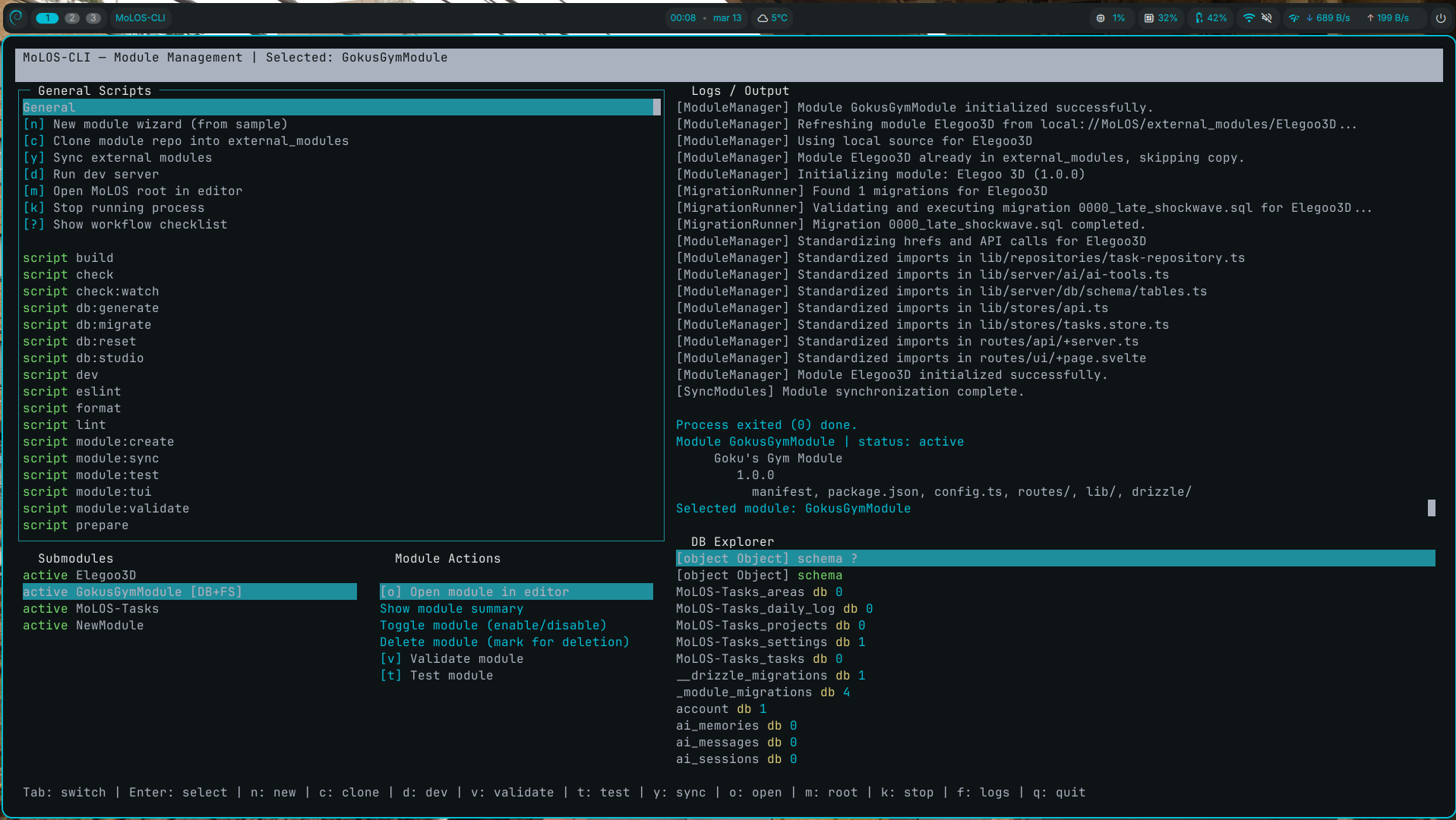
The Module Management TUI is a terminal dashboard for running module workflows without bouncing between scripts, editors, and terminals. It lives in MoLOS/module-management/tui/.
Launch
Run it from the MoLOS repo root:
npm run module:tui
What You See
- Submodules: merged view of modules from the filesystem and the database, with status tags.
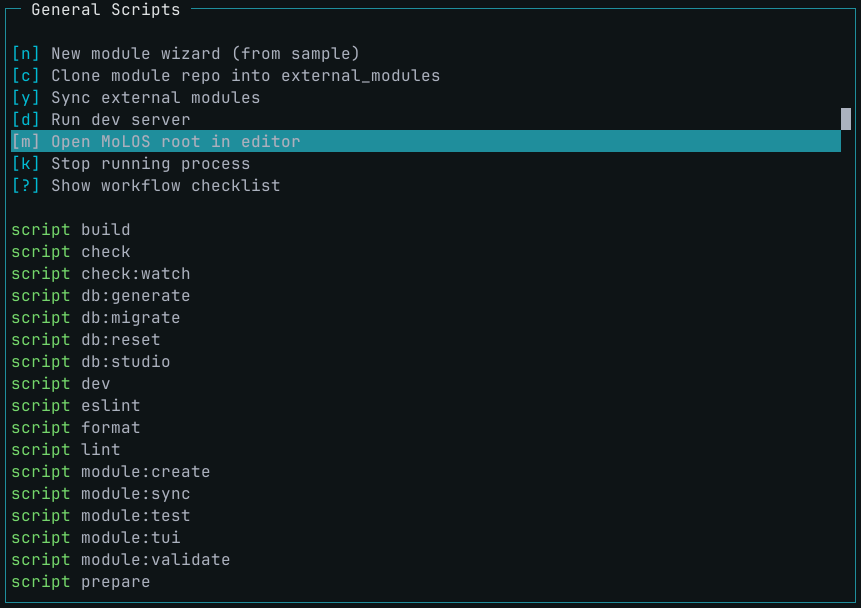
- General Scripts: common workflows and any
package.jsonscripts in the MoLOS repo. - Module Actions: actions scoped to the selected module.
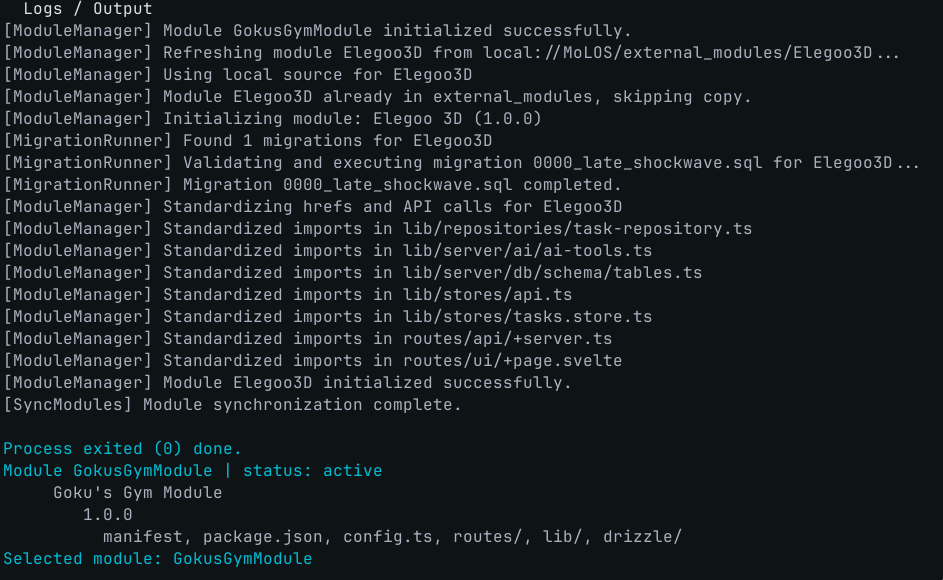
- Logs / Output: command output, diagnostics, and workflow hints.
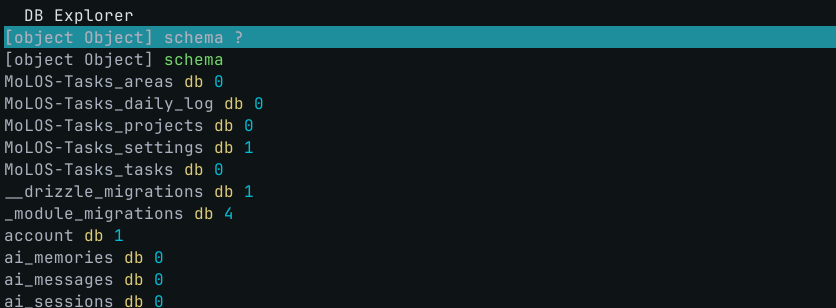
- DB Explorer: table list with row counts, plus a quick SQL prompt.
Screenshots
Overview layout
The full TUI layout with modules, actions, logs, and DB explorer in view.
Module list and status
Submodules list with status tags and source badges.
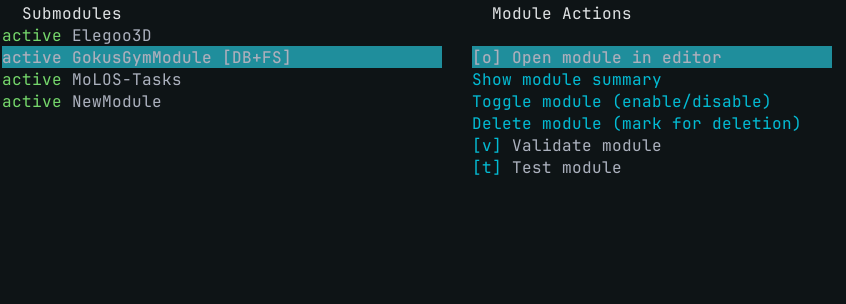
Module actions
Actions available for the MoLOS app.
DB explorer
Table list with row counts and quick SQL access.
Logs
Command output and diagnostics in the log panel.
Key Features
- New module wizard: scaffold a module from the sample without leaving the TUI.
- Repo cloning: clone a module repo straight into
external_modules/. - One-tap workflows: sync modules, run the dev server, or fire any npm script.
- Module controls: open the module in your editor, toggle enable/disable, validate, test, or mark it for deletion.
- DB insights: scan table counts and run ad-hoc SQL queries for quick sanity checks.
- Live logs: see command output in one place, with a fullscreen toggle for deep dives.
Benefits
- Faster module loops: create, validate, and test without context switching.
- Safer ops: toggle or delete modules with visibility into status and structure.
- Clearer diagnosis: logs, workflow hints, and DB checks live together.
- Less manual wiring: scripts and module actions are wired into a single interface.
Shortcuts
tab/shift+tab: cycle focus between panelsenter: run the selected actionr: re-run the selected action in the focused listn: new module wizardc: clone module repoy: sync modulesd: run dev serverv: validate selected modulet: test selected moduleo: open selected module in editorm: open MoLOS root in editork: stop the running processf: toggle logs fullscreenx: delete selected module (in Submodules panel)s: SQL prompt (in DB Explorer)q: quit
Notes
- Editor commands use
VISUALorEDITORwhen set; otherwise the TUI will prompt. - SQL results are shown in the logs, with large result sets truncated for readability.